Blooket Loading Screen Stuck? 9 Fixes That Work Fast
A Blooket loading screen that never finishes is one of the most annoying classroom problems. You type the game code, pick a nickname, and then the wheel just keeps spinning. Most loading problems have a quick fix, and you can solve them in a few minutes.
This guide from Techsslaash explains what the Blooket loading screen looks like, why it gets stuck, and the nine fixes that work best.
What Does the Blooket Loading Screen Look Like?
When Blooket works well, the loading screen lasts only a few seconds. You see the Blooket logo and a spinning wheel, and then the game opens. When something goes wrong, that same screen stays on your display for a minute or more, and the wheel keeps spinning.
Sometimes the screen looks different. You may see a blank white page, which players call the Blooket white screen, or a half loaded page with missing pictures. Both mean your browser cannot finish loading the game page.
Why Does Blooket Get Stuck on the Loading Screen?
A stuck Blooket loading screen is usually a browser, extension, or network problem, not your account. The game page loads many small files, and one blocked file can freeze the whole page.
These are the most common causes of Blooket problems like this:
- Old saved data: bad cache or cookies can stop the page from loading fresh.
- A browser extension: ad blockers can block the scripts Blooket needs.
- The wrong page: you may be on the sign in page when you need the join page.
- Weak WiFi: a slow school network can time out before the game loads.
- A school block: some school networks block Blooket or the services behind it.
- An old browser: an out of date browser may not run Blooket correctly.
- Too many tabs: open tabs use memory and can freeze a Chromebook.
- A short Blooket outage: now and then every player waits.
Work through the fixes below in order. Most players fix a Blooket loading screen in the first three steps.
Blooket Loading Screen: 9 Fixes That Work Fast
Try these fixes one by one, and stop when the game loads.
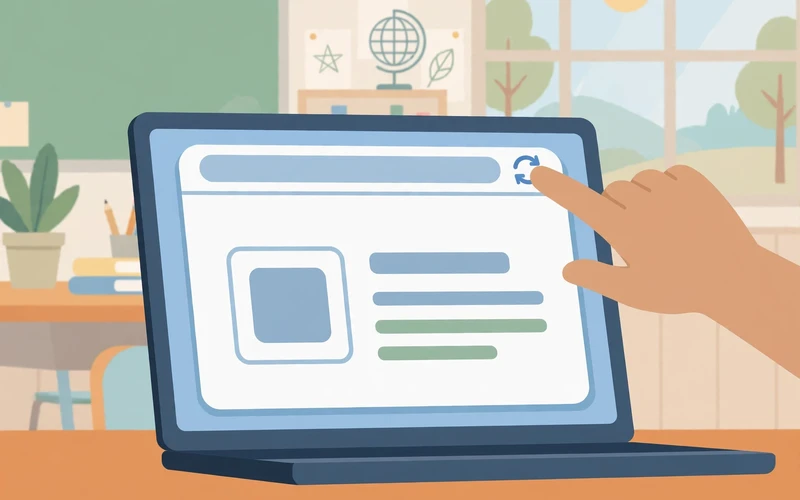
- Refresh the page. Press F5, or click the refresh arrow in your browser. On a Chromebook, press Ctrl and R together. A refresh asks for a fresh copy of the page. If a normal refresh fails, try a hard refresh with Ctrl, Shift and R.
- Check that you are on the right page. To join a game, go to play.blooket.com and enter the 7 digit code from your teacher. To sign in, go to id.blooket.com. A code typed on the sign in page will not load a game. Read our Blooket Join Game guide if you are unsure.
- Clear your cache and cookies. In Chrome, open Settings, then Privacy and security, then Delete browsing data. Tick cached images and files, and cookies, then clear the data for all time. Close the browser and try again. This is the most reliable Blooket loading screen fix.
- Try an incognito or private window. Press Ctrl, Shift and N in Chrome for an incognito window, then go to the game page. Extensions are off in a private window, so if the game loads there, an extension is the cause.
- Turn off ad blockers and extensions. If the game works in a private window, turn off your extensions one by one. Ad blockers are the most common cause. Turn them off, refresh, and turn them back on later to find the one that breaks the game.
- Switch to Chrome or Edge. Blooket works best in an up to date Chrome or Edge browser. If you use an old or less common browser, switch to Chrome and try again. Check for updates under Help, then About Google Chrome.
- Close extra tabs and check your connection. Close the tabs you do not need, because each open tab uses memory. Move closer to the router or switch to a stronger network. On a phone, test with mobile data. If the game loads on mobile data but not on school WiFi, the school network is blocking something.
- Ask IT to allow Blooket on school WiFi. School networks often block game sites and the services behind them. Blooket has its own debug page that lists what must be allowed, including firebaseio.com, which Blooket uses for live games. Ask your school IT team to allow those domains. Read our Blooket Login guide for more help.
- Wait a few minutes and try again. If Blooket itself is briefly down, no fix on your side will help. Close the tab, wait five to ten minutes, and try again. If nobody in the class can load the game, waiting is the right move.
Fixes for Students
If you are a student stuck on the Blooket loading screen, start with the simple steps. Refresh the page, check the code, and make sure you are on play.blooket.com. Game codes are 7 digits long, and one wrong digit sends you to a page that never loads.
Students need no account to join a game. If you are stuck on a sign in screen, you are on the wrong page. Go to play.blooket.com, enter the code, pick a nickname, and join as a guest. A code stops working when the host ends the game, and a late join fails if the host turned off Allow Late Joining.
If the game still will not load, try an incognito window and turn off your ad blocker, then tell your teacher what you tried.
Fixes for Teachers and Hosts
Test the game before class. Join as a test player and check that the loading screen clears in a few seconds. If your own screen is stuck, run through the same nine fixes above.
Check your game settings too. Turn on Allow Late Joining if students join after the game starts. If a student says the game will not load, ask which page they are on. A white screen usually means a blocked script, while a spinning wheel means a slow connection.
If the whole class is stuck on the Blooket loading screen at the same time, the cause is almost always the school network or a short Blooket outage. Ask IT to check the network. Do not make students create new accounts, because the account is not the problem.
Blooket Loading Screen on Chromebook
Chromebooks are the most common school device. If your Blooket loading screen is stuck on a Chromebook, start by closing extra tabs and apps. Chromebooks have less memory than a full laptop, and too many open tabs can freeze a game page.
Next, clear the cache and try an incognito window. School Chromebooks often have extensions installed by the school, and one of them can block Blooket. An incognito window turns them off, so it is a fast way to test. Make sure ChromeOS is updated too.
If the game loads at home but not at school, the school WiFi is the cause. Tell your teacher so they can pass the Blooket debug page list to the IT team. On a personal Chromebook, try a guest window, which runs with no extensions and no saved data.
Blooket Loading Screen on School WiFi
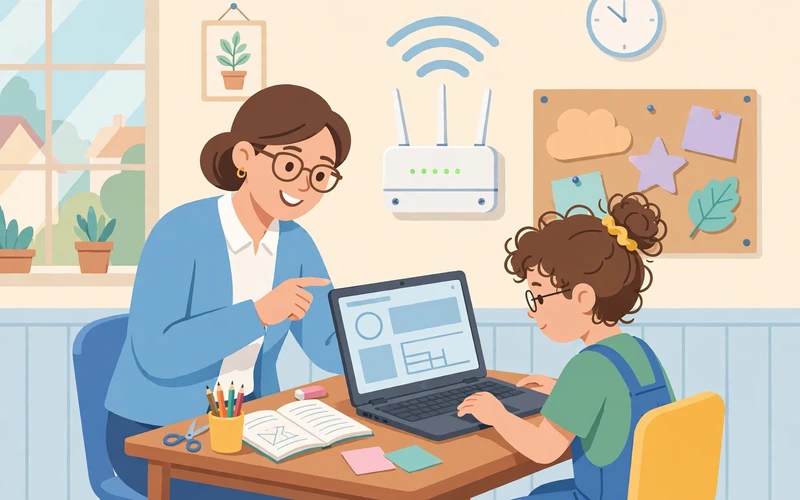
School WiFi is the most common cause of a Blooket loading screen that works at home but fails at school. School filters block games and unsafe sites, and they can also block the services Blooket needs. The page loads, but the live game data never arrives, so the wheel keeps spinning.
Blooket has its own debug page that lists the domains that must be allowed, including firebaseio.com. Share it with your school IT admin and ask them to allow the full list. Test on mobile data first to prove the problem is the school network, not your device.
Students should never try to get round a school block with a VPN or a proxy. School rules forbid it. Tell your teacher, who can ask IT to allow Blooket properly. A proper fix helps the whole class.
When to Ask Your Teacher or IT Admin
Ask for help when the Blooket loading screen is still stuck after the simple fixes. Try a refresh, a private window, a different browser, and clearing the cache. If none of those work, tell an adult what you tried and what you see, so they do not repeat your steps.
Ask your teacher if the game code has ended, if late joining is turned off, or if the whole class has the same problem. Ask IT if the game works at home but not at school, or if a white screen appears on every school computer. A clear report helps IT find the block fast.
Frequently Asked Questions
Why is my Blooket loading screen stuck?
The most common causes are old cache, a blocking extension, the wrong page, or a school network block. Refresh first, then clear your cache and try an incognito window. If the game loads in a private window, an extension is the cause.
Why is Blooket not loading on my Chromebook?
Chromebooks can run out of memory when too many tabs are open, which freezes the game page. Close extra tabs, clear the cache, and try an incognito window. Make sure ChromeOS is updated.
What is the Blooket white screen, and how do I fix it?
The Blooket white screen is a blank page that appears when the game scripts are blocked. Turn off your ad blocker and other extensions, clear your cache, and try Chrome. On school WiFi, ask IT to allow the domains on the Blooket debug page, including firebaseio.com.
Does Blooket need an account to load a game?
No. Students need no account to join a game. Go to play.blooket.com, enter the 7 digit code, pick a nickname, and join as a guest. You only need an account to save tokens, Blooks, and stats.
How long should the Blooket loading screen take?
On a good connection, the loading screen clears in a few seconds. If the wheel spins for more than a minute, something is wrong. Refresh the page, then work through the fixes in this guide. If the whole class waits at the same time, Blooket may be briefly down.
A stuck Blooket loading screen is annoying, but rarely serious. Refresh the page, clear your cache, turn off extensions, and check that you are on the right page. Those four steps fix the problem for most players. If the school network is the cause, share the Blooket debug page list with your IT team. For more help, visit the official Blooket website or read the Blooket Help Center.