
Blooket Login: Sign In Fast as Teacher or Student (2026)
Blooket login is the first step to your Blooket account. Once you sign in, you can build question sets, host live games, join your class game, and collect Blooks. The login takes less than a minute when you use the right page and the right sign-in method. This guide shows you how to sign in as a teacher or a student, how to create an account, and how to fix the most common login problems.
Many people get stuck because Blooket has two different pages: one for signing in to an account, and one for joining a game with a code. This guide from Techsslaash clears up that confusion, so you land on the right page the first time and get into your game fast.
What Is Blooket Login?
A Blooket login signs you in to your personal Blooket account. Teachers use it to open their dashboard, where they create question sets, host games and read reports. Students use it to save their tokens, keep their Blook collection and track their game stats. Your account keeps your progress safe across devices, so you can sign in on a school computer and later on a home tablet and find everything where you left it.
Blooket login is different from joining a game. Joining a game needs only a game code, and it happens at play.blooket.com. No account is needed for that. But if you want to keep your tokens, Blooks and stats, you need to sign in first.
Blooket Login in 3 Easy Steps
Signing in is simple. Follow these three steps, and you will be on your dashboard in under a minute.
- Go to the official Blooket website and click Log In in the top right corner, or go straight to id.blooket.com, the Blooket login page.
- Pick the way you signed up: Sign in with Google, email and password, or Log in with Clever. Use the same method every time, because each account is tied to one sign-in method.
- Enter your details and click Log In. Blooket opens your dashboard at dashboard.blooket.com, and you are ready to play, host or build a set.
If you signed up with Google, click the Google button and pick the same Google account you used at sign-up. If you signed up with an email address, type that email and your password. There is no separate password for a Google account, so email and password will not open it.
Blooket Login for Teachers
Teachers sign in the same way as everyone else, but their dashboard looks different. After a Blooket login, a teacher account shows the tools for running a class: Create, Discover, My Sets, Host, History and Homework. A teacher account is needed to build question sets and host live games, so make sure you signed up as a teacher, not as a student.
For the fastest sign-in, use your school Google account. Most schools use Google Workspace, so one click signs you in and connects with Google Classroom. If your school uses Clever, pick Log in with Clever on the login page and sign in through your school portal. Both methods are free, and both open the same teacher dashboard.
Teachers who share a classroom computer should sign out when they finish. Your dashboard holds your sets and your class reports, so do not leave it open on a shared device. Click your username and choose Log Out when you finish.
Blooket Login for Students
Students have two ways to play. If your teacher gave you a game code, you do not need a Blooket login at all. Just go to play.blooket.com, type the code, pick a nickname and join. This is the fastest way into a live game, and it works on any device.
But a student account is worth having. When you sign in, you keep the tokens you earn, the Blooks you unlock, and your stats and game history. Without an account, all of that disappears when the game ends. So if you play Blooket often, create a free account and sign in before you join a game.
To create a student account, you must be at least 13 years old in the United States, or at least 16 years old in most other countries. Younger students can still join games as guests with a code from their teacher, but they need a parent or guardian to help them create an account.
How to Create a Blooket Account
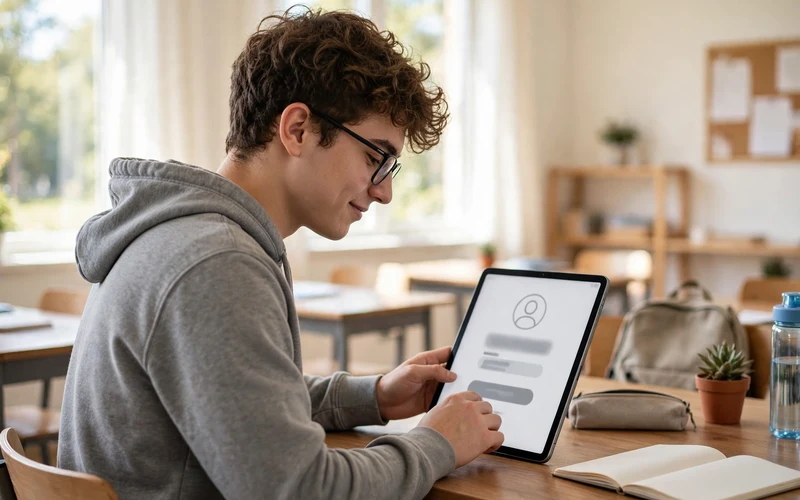
If you do not have an account yet, creating one takes about two minutes. It is free for both teachers and students.
- Go to blooket.com and click Sign Up in the top right corner.
- Choose Sign Up with Google or Sign Up with Email. Google is the fastest option, and it works well on school Chromebooks.
- Pick your role: Teacher or Student. Pick carefully, because a student account cannot host games or create sets.
- Enter your name, email and a strong password, or pick your Google account. Then confirm your email if Blooket asks you to.
- Sign in with the same method you just used. Your Blooket login will open your new dashboard, and you can start right away.
Your username is how other players see you, so pick one that is easy to remember and school safe, and write down the exact spelling, because usernames are case sensitive. If you signed up with Google, remember that your Google account is your login, and there is no separate Blooket password to remember.
Blooket Login on Chromebook, Phone and Tablet
Blooket is fully browser based, so there is no official Blooket app to install. The Blooket login page works the same way on almost any device with a modern browser and an internet connection.
- Chromebook: open Chrome, go to id.blooket.com, and sign in with Google. Chromebooks and Blooket work well together, and most school Chromebooks already have the right setup.
- Phone and tablet: open Chrome or Safari, go to blooket.com, and tap Log In. The login page and the dashboard both work on small screens, and you can join games from your phone too.
- Windows and Mac: use an up-to-date Chrome, Edge, Firefox or Safari browser. Chrome gives the smoothest experience, and an old browser can cause login errors.
After you sign in, bookmark dashboard.blooket.com so you can skip the login page next time. On a phone, you can also add the page to your home screen for one-tap access.
Blooket Login Not Working? 7 Quick Fixes
Most Blooket login problems have a simple cause. Work through these fixes in order, and one of them usually solves it.
- Use the right sign-in method. If you signed up with Google, sign in with Google. Email and password will not open a Google account, and Google will not open an email account.
- Check your email and password. Usernames and passwords are case sensitive. Check that Caps Lock is off, and type your email exactly as you registered it.
- Reset your password. On the Blooket login page, click Forgot Password and follow the link in your email. Check your spam folder if the email does not arrive in a few minutes.
- Clear your cache and cookies. Old saved data can freeze the login page or send you in a loop. Try a hard refresh, or open a private window and sign in there.
- Try another browser. Blooket works best in an up-to-date Chrome browser. Turn off ad blockers too, because they can block parts of the site.
- Check that you are on the right page. The account login page is id.blooket.com, while play.blooket.com is the game join page and asks for a code, not a password.
- Ask your school IT team. If Blooket is blocked on the school network, only the school can allow it. Test the same device on mobile data to confirm the block.
Blooket Login Safety Tips for Students and Teachers
Your Blooket account holds your sets, your reports and your Blooks, so keep it safe with a few simple habits.
- Never share your password with anyone, not even a classmate who wants to borrow your Blooks.
- Use a strong password that mixes letters and numbers, and do not reuse a password from another site.
- Sign out on shared or school computers when you finish.
- Only sign in on the official site, blooket.com, or its login page, id.blooket.com. Other sites that promise free tokens or free Blooks are not safe.
If you think someone else has used your account, change your password right away from your dashboard settings, and sign out of all devices if that option is available. For more help, the official Blooket Help Center has step-by-step guides for accounts, login and hosting.
Frequently Asked Questions
How do I log in to Blooket?
Go to id.blooket.com, the Blooket login page, and sign in with Google, email and password, or Clever, using the same method you used at sign-up. Blooket then opens your dashboard. If you only have a game code, go to play.blooket.com instead, because no login is needed to join a game.
Can I log in to Blooket without an account?
You cannot sign in without an account, but you can play without one. Go to play.blooket.com, enter the game code from your teacher, pick a nickname and join as a guest. Guests can play the full game, but they do not keep tokens, Blooks or stats.
Why does my Blooket login say my password is wrong?
The most common cause is using the wrong sign-in method. If you signed up with Google, you must sign in with Google, because there is no password on that account. If you signed up with email, check your spelling and Caps Lock, then use Forgot Password to reset it.
Is Blooket login free?
Yes. Creating an account and signing in is completely free for teachers and students. Blooket Plus is an optional paid upgrade for teachers that adds deeper reports and larger games, but the free account covers sets, hosting and play.
Can I stay logged in to Blooket on my Chromebook?
Yes. On your own Chromebook, your browser can keep you signed in, so your next Blooket login is one click. On a shared school device, sign out when you finish.
Blooket login is simple once you know the right page and the right sign-in method. Sign in with Google, email or Clever, use your teacher account to host and your student account to keep your progress, and keep your password safe. For the next step, read our Blooket Dashboard Guide to learn every tab on your dashboard, and browse our How To guides for more simple tech help.



One Comment