Blooket en Español: Play & Teach Spanish in 5 Steps
Can you play Blooket en español? Yes, and Spanish teachers have used it for years to make vocabulary and grammar practice feel like a game. But here is the honest answer most guides skip: Blooket has no Spanish button in its settings, so the menus stay in English. What you can do in Spanish is everything that matters, the questions, the answers, and the learning itself.
In this guide from Techsslaash, you will learn how to use Blooket en español in class or at home: how to make Spanish question sets, find ready-made sets, pick the best modes, and translate the menus with a browser trick.
Does Blooket Have a Spanish Language Setting?
No. Blooket has no built-in language setting, so you cannot switch the whole website to Spanish from a menu. The dashboard, the buttons, and the game screens are in English. Some low-quality guides claim a Spanish setting exists, but it does not. If you follow those guides looking for a language button, you will waste your time.
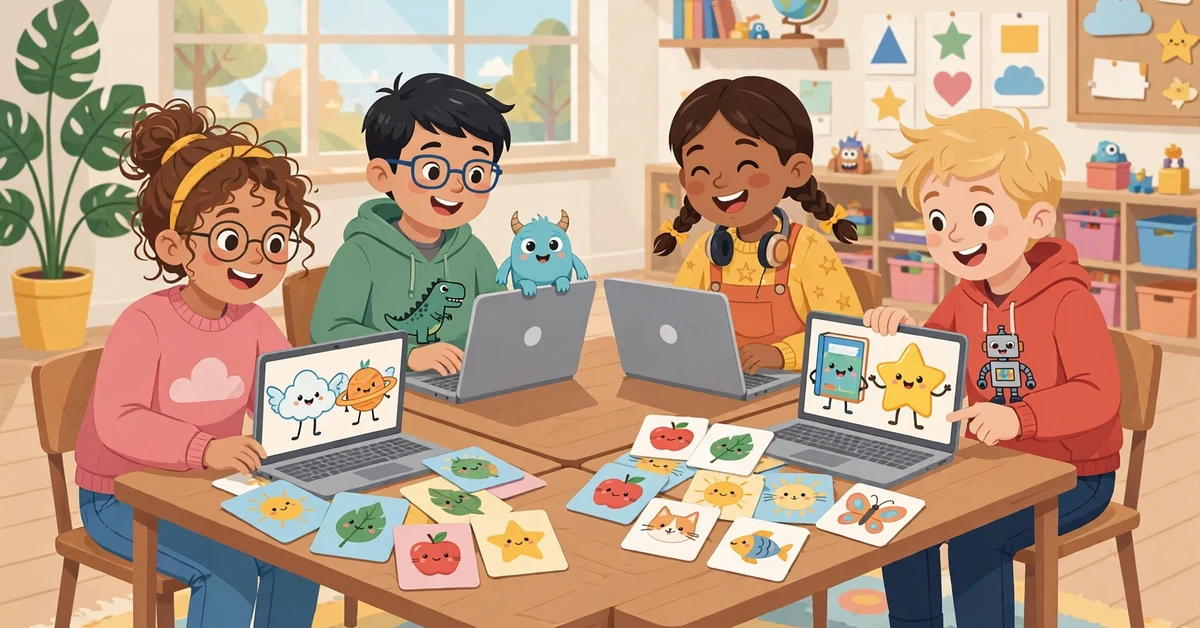
That does not stop you from playing Blooket en español. Blooket lets teachers type questions and answers in any language, including Spanish. So your students can answer Spanish vocabulary, verbs, and grammar questions in a full game, even while the buttons stay in English. Most students learn the few English buttons, like Play, Join, and Host, in one session.
Your browser can also translate the menus into Spanish, a trick we cover later in this guide, so you can run a full Blooket en español class without a language setting.
How to Create a Spanish Question Set in Blooket
Making your own Blooket en español set is the best way to match your exact lesson. You control the words, the level, and the question types. Here is how to build one.
- Log in to Blooket and open Create. From your dashboard on Blooket, click Create a Set. Give your set a clear Spanish title, like “Los verbos – Presente”. A clear title helps you and other teachers find it in Discover.
- Add your questions in Spanish. Type the question in Spanish and add four answer choices, with the correct one marked. Mix the types: Spanish word to English meaning, English word to Spanish meaning, a sentence with a missing word, and a picture question.
- Use images where they help. Blooket lets you add an image to a question. A photo of a dog next to “el perro” helps beginners far more than a plain word list.
- Keep the set short and focused. Twenty to thirty questions is a good size for one game. A set that is too long tires students out, and a set that is too short ends before the game gets fun. One topic per set works best, like colors, numbers, or one verb tense.
- Save and test it yourself. Play your set once in Solo mode before you use it with a class. Check the spelling, check that the right answer is marked right, and check the level. Fix any mistakes now, not in front of thirty students.
You can also import questions from Quizlet into Blooket, which saves time if you already have Spanish flashcard sets there. And if you use an AI tool to draft questions, always read them before you save the set, because AI can make grammar mistakes in Spanish.
How to Find Ready-Made Spanish Sets in Discover
You do not always need to build a set from zero. Thousands of teachers have already shared Blooket en español sets in Discover, and many are free to use. Here is how to find the good ones.
- Search in Spanish, not English. Search for “español”, “verbos”, “vocabulario”, or your exact topic, like “los colores”. Spanish search terms find sets that English search terms miss.
- Check the question count and the preview. A good set has at least fifteen questions and no blank or broken entries. Open the preview and read five or six questions before you host it.
- Look at the plays and the creator. Sets with many plays and a clear title are usually safe bets.
- Copy the set and fix it. When you find a set that is close but not perfect, save a copy to your account and edit it. Change the words to match your class, fix spelling mistakes, and remove questions that are too easy or too hard.
- Save the best ones. When you find a great Spanish set, keep it in your favorites. A small library of five or six trusted sets will cover most of your term.
Best Blooket Game Modes for Spanish Class
Not every game mode fits every lesson. Pick the mode by your goal, and your Blooket en español games will work much better.
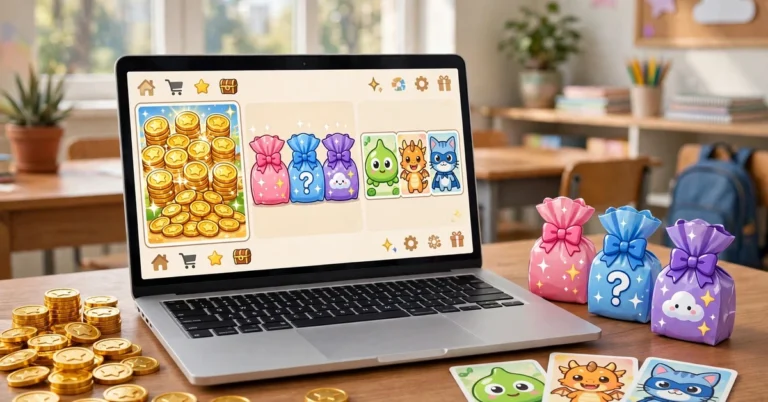
- Gold Quest for vocabulary races. Students answer questions to open chests and steal gold. It is fast and loud, and perfect for vocabulary review.
- Classic for quick checks. The simplest mode: answer fast, earn points, climb the board. Use it for a five-minute warm-up or a quick quiz at the end of class.
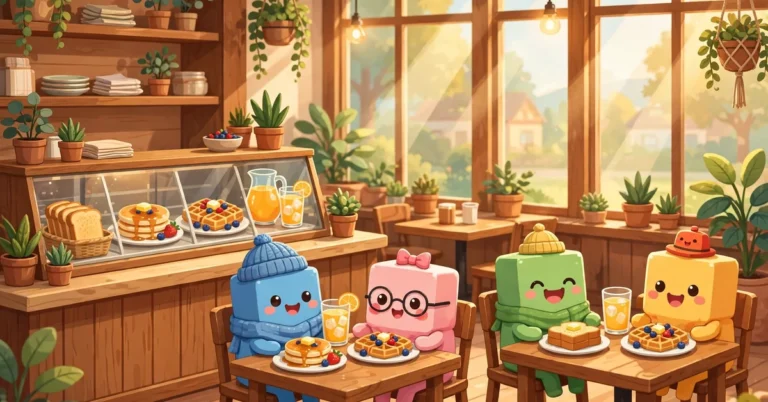
- Cafe for sentence building. Students serve customers by answering questions. It is slower and calmer, so it works well for longer questions and verb conjugations.
- Tower Defense for long practice. Students earn towers by answering correctly. It suits a full lesson of mixed review.
- Racing for verb drills. A short race where correct answers move you forward. Great for conjugation drills, where speed and accuracy both matter.
- Solo and Homework for practice at home. Students can play your Spanish set alone or as homework. This is the best way to give extra practice to students who need it, without using class time.
How to Play Blooket in Spanish Step by Step
Playing Blooket en español is simple, and the steps are the same as any Blooket game. The only difference is that the questions are in Spanish.
- The teacher hosts the game. Pick your Spanish set, choose a game mode, and click Host. Blooket will show a game code on the screen.
- Students join at play.blooket.com. Students open the play page on their own devices and type in the game code. No account is needed to join a game.
- Students pick a nickname and a blook. Each student chooses a nickname and a character. Keep nicknames school-safe, and remind students that the teacher sees them all.
- Play and review the results. The game runs live. After the game, open the results and go over the questions most students missed. That five-minute review is where the real learning happens.
Use Your Browser to Translate the Blooket Menus
If the English menus bother your students, let the browser translate them. In Google Chrome, right-click anywhere on the Blooket page and choose Translate to Spanish. Chrome will turn the menus, buttons, and instructions into Spanish. Your questions stay exactly as you wrote them, because the browser only translates the page text around them.
The translation is not perfect, but it is good enough for young students who read little English. Students can use the same trick on their own devices, and it works for French and other languages too.
7 Tips for Teachers Using Blooket in Spanish Class
These tips come from Spanish teachers who use Blooket en español every week.
- Teach the game first. Spend five minutes showing students how to join, how to answer, and what the buttons do. A class that understands the game learns more from it.
- Mix easy and hard questions. Start with easy wins so every student scores early, then add harder grammar questions.
- Write questions fully in Spanish. Short Spanish instructions, like “Elige la respuesta correcta”, teach classroom language as well.
- Play in short rounds. Two ten-minute games beat one twenty-minute game. Short rounds keep energy high and let you switch modes between rounds.
- Review mistakes right after the game. Go over the top three missed questions while the game is still fresh in their minds.
- Assign Solo games for homework. A Solo or Homework game lets students replay the same set until they master it. It is the simplest way to give extra practice.
- Let students make their own sets. Ask students to build a small set on a topic they just learned. Students love playing sets their classmates made.
Everything in this Blooket en español guide also works for French and other languages. You can type questions in French, German, Italian, or any language your keyboard supports, so keep a separate set library for each language.
Frequently Asked Questions
Can I change Blooket to Spanish?
There is no language setting in Blooket, so you cannot switch the menus to Spanish inside the site. But you can play Blooket en español with Spanish question sets, and translate the menus with your browser. Right-click in Chrome and choose Translate to Spanish.
Is Blooket free for Spanish class?
Yes, the free version of Blooket is enough for most Spanish classes. You can create sets, host games, and use Solo and Homework modes without paying. Blooket Plus adds extras, but you do not need it to teach Spanish with Blooket.
Where do I find Spanish question sets on Blooket?
Open Discover and search in Spanish, with words like “español”, “verbos”, or “vocabulario”. Preview a Blooket en español set before you host it, and save a copy so you can edit it for your class.
What is the best Blooket mode for Spanish vocabulary?
Gold Quest is the best first choice for Blooket en español vocabulary, because it is fast and students answer many questions quickly. Classic works for quick checks, and Cafe or Tower Defense suit grammar and longer questions.
Can students play Blooket en español alone?
Yes. A teacher can assign a Blooket en español set as a Solo game or as Homework, and students can play it alone. They can replay it as many times as they like, which makes it great for practice at home.
Blooket en español is not a hidden feature or a secret setting. It is a way of using Blooket: Spanish questions, Spanish answers, and the right game mode. Build one good set, host your first Blooket en español game, and your students will ask to play again tomorrow. For more help with the game itself, read our Blooket Discover guide and our Play Blooket guide, and see how Spanish teachers use it in class at Mis Clases Locas.