My Blookets: Manage Sets, Stats & Blooks in 7 Steps
My Blookets is the name players use for everything that belongs to them in Blooket: their Blook collection, their question sets, and their game stats. When you sign in to your Blooket account, all three live in your dashboard, only a few clicks apart. Learning to manage My Blookets well means finding a set in seconds, growing a collection you are proud of, and seeing how you are doing in every game.
You do not need a paid plan to manage My Blookets. The free account gives you the full collection page, your sets, and your stats. In this guide from Techsslaash, you will learn how to open My Blookets, what your Blook Score means, how to sell duplicates for tokens, and how to keep your sets tidy.
What Is “My Blookets” in Blooket?
My Blookets is not a single button on the screen. It is the set of personal pages inside your Blooket account. The three main parts are My Blooks, where your collected characters live; My Sets, where your question sets live; and Stats, where your game numbers live. All three sit in your Blooket dashboard at dashboard.blooket.com.
What you see depends on your account type. Teachers see My Sets, Create, Host, and History, because they build sets and run games. Students see My Blooks, Play, Homework, Stats, and the Market, because they join games and collect characters. Both sides share one idea: your own stuff in one place. Many players search for “my blooket” when they mean these account pages, and this guide covers all of them.
How to Open My Blookets in 5 Easy Steps
Opening My Blookets takes less than a minute. Follow these five steps.
- Go to the official Blooket website and click Log In, or go straight to id.blooket.com, the sign-in page.
- Pick the way you signed up: email and password, Sign in with Google, or Log in with Clever. Use the same method every time.
- Enter your details and click Log In. Blooket opens your Blooket My Dashboard at dashboard.blooket.com.
- Look at the left sidebar. Students click My Blooks for their collection. Teachers click My Sets for their question sets. Everyone can click Stats to see their progress.
- Bookmark dashboard.blooket.com so you can open My Blookets in one click next time.
If you only have a game code, go to play.blooket.com instead. No login is needed to join a game, but guests do not save Blooks, tokens, or stats. An account is needed to keep your progress.
My Sets: Organize Your Question Sets
In My Blookets, My Sets is the teacher’s library. It holds every question set you created or copied, ready to host, assign, or play. A question set is a list of questions and answers on one topic, and every game starts from a set. Open any set to edit its questions, copy it, share it, or delete it.
To build a set, click Create and type your questions one by one, or import them from a file. To save time, open Discover first and search for a set on your topic. Blooket’s public library holds more than 20 million teacher-made sets, so a good one often already exists. If you find one you like, copy it to My Sets and edit it to fit your class. Blooket Plus adds folders, so you can group your blooket sets by class or subject.
- Give every set a clear name, with the topic and the class, so you can find it fast.
- Star the sets you host often in Favorites.
- Delete old copies you no longer use, so the list stays short.
- Keep one set per topic and reuse it all year.

My Blooks: Your Collection in One Place
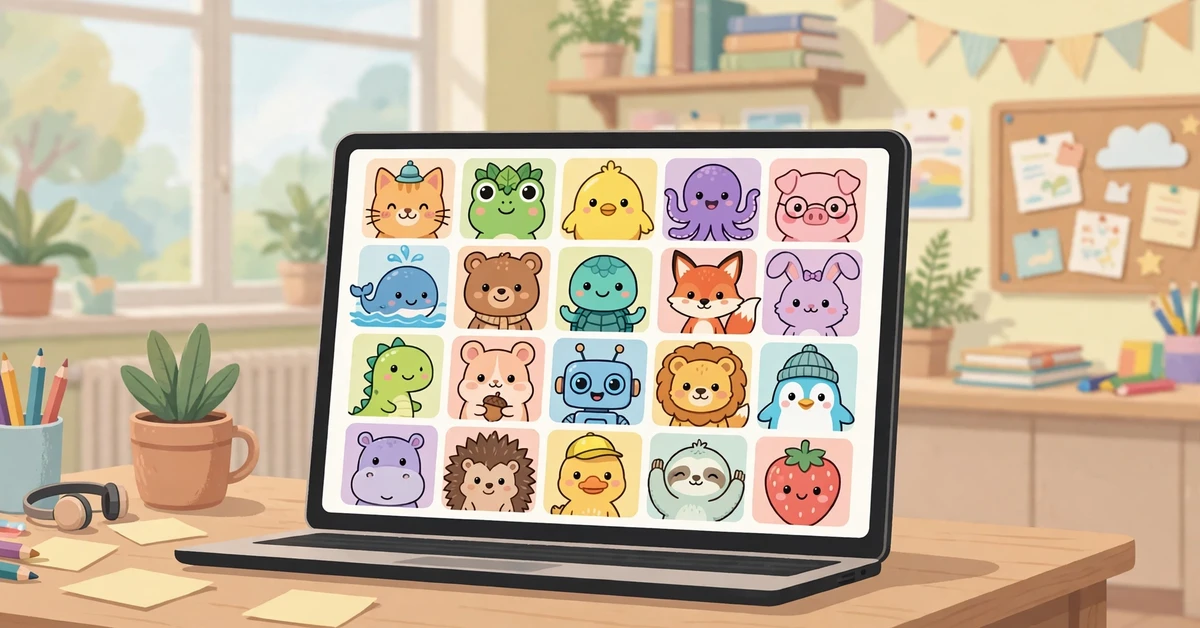
The My Blooks page is the heart of My Blookets for students. It shows every Blook you own in one place. A Blook is a square collectible character, the avatar next to your name in a game lobby and on the leaderboard. Blooks are cosmetic only. They do not change your score, your speed, or your answers. Blooks come in rarity tiers, from Common and Rare up to Epic, Legendary, Chroma, and Mystical.
At the top of the page you will see your Blook Score. This number reflects the variety and rarity of your collection. A higher score means a more varied and rare set of Blooks, and duplicates do not count toward it. As your score rises, your page banner changes through levels called Bronze, Silver, Gold, Platinum, and Diamond. Rarity gems show how many Blooks of each rarity you own. The Collection Overview shows your Total Blooks, including duplicates, and your Collection Value. You can read the full details in Blooket’s official Blooks page guide.
You can also change how the page looks. Hide or show the free starter Blooks, and switch between a view grouped by packs and a plain grid view. If you want to see which Blooks are missing from a pack, the pack view shows the gaps clearly.
How to Raise Your Blook Score
Your Blook Score rewards variety and rarity, not volume. Ten copies of one common Blook add nothing. One copy each of ten different Blooks raises your score. To lift it, collect new Blooks you do not own yet, and aim for rarer ones when you can. Before you spend tokens on a pack, check its Show Drop Rates button to see which Blooks it can give you.
Stats: Track Your Games and Progress
Stats is the part of My Blookets that shows how you are doing. Open it from the dashboard sidebar to see your tokens earned, games played, questions answered, and accuracy rate. You can also see how you performed across different game modes. For students, it feels like a game profile. For teachers, History and Reports show class totals and per-question results.
Checking your blooket stats after a game is a good habit. Your accuracy rate shows how many questions you got right. Your games played and questions answered show how much practice you have done. If your accuracy is low on one topic, that topic needs more practice, and you can replay its set until the number climbs.
- Check accuracy first. It tells you more than the final score.
- Look at questions answered to track your practice over time.
- Watch your tokens earned. Tokens fund your next packs in the Market.
How to Sell Duplicate Blooks for Tokens
Selling duplicates is one of the smartest ways to manage My Blookets. When you open packs, you will often pull a Blook you already own. A duplicate is not wasted. Sell Blooks back for tokens and use those tokens to open more packs. Rarer duplicates sell for more tokens, so a duplicate Legendary funds far more future packs than a stack of commons.
- Open the My Blooks page from your dashboard sidebar.
- Click a Blook to see its details: its pack, its rarity, its sell price, and its Blook Score value.
- Press Sell to sell one Blook for the displayed price, or use the +1, +5, and +10 buttons to sell several at once.
- Use the One Left button to keep one copy of the Blook and sell the rest of the duplicates.
- Confirm the sale and check your token balance.
Be careful with your last copy. If you try to sell the only copy of a Blook you own, Blooket asks you to type the Blook’s full name first. This extra step stops accidents. Sold Blooks cannot be recovered, so use the One Left button and check the list before you confirm, especially for rare Blooks.

Tokens and the Market: Grow Your Collection
Blooket tokens are the currency that grows your collection, and you earn them by playing games. Doing well usually earns you more. Tokens are not real money, and you cannot buy them with cash. They reward playing and learning, and you spend them in the Market.
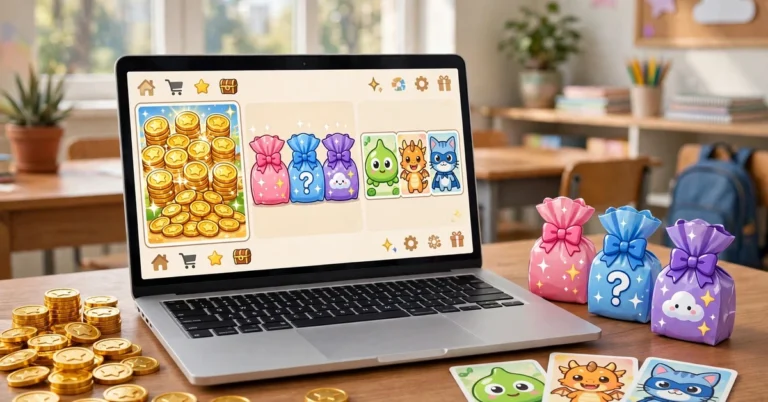
The blooket market has two parts. Blook Packs sit at the top, and each pack holds a themed pool of Blooks. The Weekly Shop sits below, with banners, titles, and limited-time items. Click any pack to see its artwork, name, and cost, then check Show Drop Rates. You can buy and open several packs at once. A longer reveal animation usually means you unlocked a rarer Blook. After opening, click Collect to add the Blooks to your collection, then visit the Locker page to equip new banners and titles.
7 Quick Tips to Manage My Blookets Better
These seven habits keep your account tidy and your collection growing.
- Sell duplicates after every pack session, keeping one copy of each Blook.
- Check Show Drop Rates before you spend tokens on a pack.
- Star your best sets in Favorites so you can host them in seconds.
- Search Discover before you build a new set from scratch.
- Check your stats after each game to find the questions you missed.
- Bookmark your dashboard so My Blookets opens in one click.
- Never share your login with anyone promising free Blooks. Blooks are earned inside the game only, and anyone asking for your password is not to be trusted.
Frequently Asked Questions
Where is My Blookets in Blooket?
Sign in at id.blooket.com. Your dashboard opens at dashboard.blooket.com. Click My Blooks in the left sidebar for your collection, My Sets for your question sets, and Stats for your progress.
How do I raise my Blook Score?
Collect new Blooks you do not own yet, especially rarer ones. Your Blook Score rewards variety and rarity, and duplicates do not count. Ten copies of one Blook add nothing to your score.
Can I get a sold Blook back?
No. Sold Blooks cannot be recovered. If you try to sell your last copy of a Blook, Blooket asks you to type its full name first. Use the One Left button to keep one copy safe.
Why can I not see My Sets?
My Sets is a teacher tool. If you signed in with a student account, you will see My Blooks, Play, Homework, and Stats instead. Sign in with a teacher account to create and manage sets.
Do Blooks make you better at games?
No. Blooks are cosmetic avatars. They change the character next to your name, but they do not change your score, your speed, or your answers.
My Blookets puts your whole Blooket life in one place: your collection, your sets, and your stats. Keep duplicates sold, sets tidy, and stats in view, and the game stays fun and organized. For more step-by-step help, browse our How To guides.